Back in 2010, I described the ultimate colour palette at http://libreoffice-environment.blogspot.com/2010/11/ultimate-colour-palette-for-libreoffice.html.
I have not used this particular palette, so I don't know if everything is correct.
Here's the URL: https://app.box.com/s/9552x6yjgcdlhbaf356vgmbd21k4oe9p.
17 June 2015

16 June 2015
Bang's RGB Colour Names
About three months ago, I stumbled across http://www.procato.com/rgb+index/.
That page has 678 colours, with what the site creator considers to be meaningful names. Over the weekend, I reduced it to a SOC file, for use in LibreOffice, Apache OpenOffice, and EuroOffice.
I've included it in my my standard palette, which can be downloaded from https://app.box.com/s/xfx3z7r9oo84ay8cw6bajvbvvopokedb
I think that https://app.box.com/s/hm5ogx4oxj97v3mzo4abbgb6ns9tn3e8 is correct. I had a couple of minor issues --- mainly quotation marks that aren't --- when I first installed it. (I originally created it with LibO 5.0 beta, with autocorrect quotation marks on. Something that always results in errors, when editing any of the files in the /user/config/ directory )
That page has 678 colours, with what the site creator considers to be meaningful names. Over the weekend, I reduced it to a SOC file, for use in LibreOffice, Apache OpenOffice, and EuroOffice.
I've included it in my my standard palette, which can be downloaded from https://app.box.com/s/xfx3z7r9oo84ay8cw6bajvbvvopokedb
I think that https://app.box.com/s/hm5ogx4oxj97v3mzo4abbgb6ns9tn3e8 is correct. I had a couple of minor issues --- mainly quotation marks that aren't --- when I first installed it. (I originally created it with LibO 5.0 beta, with autocorrect quotation marks on. Something that always results in errors, when editing any of the files in the /user/config/ directory )
24 March 2015
LibreOffice & Apache OpenOffice Password Recovery
* LibreOffice 3.4.5 and lower can write files whose password protection relies on Blowfish;
* LibreOffice 3.4.4 and lower can read files whose password protection relies on Blowfish;
* LibreOffice 3.4.5 and higher can read files whose password protection relies on AES-256;
* LibreOffice 3.5.0 and higher can write files whose password protection relies on AES-256;

* OpenOffice.org 3.3 and lower can read/write files  whose password protection relies on SHA1/Blowfish;
* Apache OpenOffice 3.4 and higher can read/write files whose password protection relies on SHA256/AES;

https://wiki.openoffice.org/wiki/User:TJFrazier/Encryption contains a transitional macro for AOo 3.4, to read SHA1/Blowfish encrypted documents.

The Crypto++ library contains routines for encrypting/decrypting blowfish, AES-256, and other algorithms for ciphers.

http://sourceforge.net/projects/ooomacros/files/PasswordCracker/
is an OOo extension/macro that brute forces passwords.
It was last updated in 2005, so it won't work with LibO 3.5.0, and higher, or AOo 3.4 and higher. I noticed that SourceForge didn't offer "Code" on the project components line, so source code might not be available.

http://archive09.linux.com/articles/61635 is an article from 2007 on breaking documents encrypted with OOo.

http://ringlord.com/dl/Decrypting%20ODF%20Files.pdf is an in-depth explanation of how to decrypt ODF File Format files.

One of the commercially distributed password recovery tools claims that the estimated time to recover a password are:
* 5 characters: 28 minutes;
* 6 characters: 44 hours;
* 7 characters: 174 days;
* 8 characters: 45 years;
I'm assuming the normal stupid password selection process that is typically used.

At 10,000 passwords per second, brute force for the 192 ASCII set of glyphs:
(This is run of the mill equipment.)
Glyphs Duration Unit
2 1.84 seconds;
3 5.90 minutes;
4 0.786 days;
5 21.57 weeks;
6 79.65 years;
7 1.53E+004 years;
8 2.94E+006 years;
9 5.64E+008 years;
10 1.08E+011 years;
11 2.08E+013 years;
12 3.99E+015 years;
13 7.66E+017 years;
14 1.47E+020 years;
15 2.82E+022 years;
16 5.42E+024 years;
17 1.04E+027 years;
18 2.00E+029 years;
19 3.84E+031 years;
20 7.37E+033 years;

At 1,000,000,000 passwords per second, brute force for the 192 ASCII set of glyphs:
(This is COTS hardware, albeit optimized for this specific task.)
Glyphs Duration Unit
2 0.00 seconds;
3 0.00 seconds;
4 0.68 seconds;
5 130.46 seconds;
6 6.96 hours;
7 55.66 days;
8 29.36 years;
9 5.64E+003 years;
10 1.08E+006 years;
11 2.08E+008 years;
12 3.99E+010 years;
13 7.66E+012 years;
14 1.47E+015 years;
15 2.82E+017 years;
16 5.42E+019 years;
17 1.04E+022 years;
18 2.00E+024 years;
19 3.84E+026 years;
20 7.37E+028 years;

At 1,000,000,000 passwords per second, brute force for the 65536 Unicode Base Plane set of glyphs:
(This uses COTS hardware, albeit optimized for this specific task.)
Glyphs Duration Unit
2 2.15 seconds;
3 39.09 hours;
4 293.27 years;
5 1.92E+007 years;
6 1.26E+012 years;
7 8.25E+016 years;
8 5.41E+021 years;
9 3.55E+026 years;
10 2.32E+031 years;
11 1.52E+036 years;
12 9.98E+040 years;
13 6.54E+045 years;
14 4.29E+050 years;
15 2.81E+055 years;
16 1.84E+060 years;
17 1.21E+065 years;
18 7.91E+069 years;
19 5.18E+074 years;
20 3.40E+079 years;

At 10,000,000,000 passwords per second, brute force for the 65536 Unicode Base Plane set of glyphs:
(This uses COTS hardware, albeit somewhat specialized, and optimized for this specific task.)
Glyphs  Duration    Unit
2 0.21 seconds;
3 3.91 hours;
4 29.33 years;
5 1.92E+006 years;
6 1.26E+011 years;
7 8.25E+015 years;
8 5.41E+020 years;
9 3.55E+025 years;
10 2.32E+030 years;
11 1.52E+035 years;
12 9.98E+039 years;
13 6.54E+044 years;
14 4.29E+049 years;
15 2.81E+054 years;
16 1.84E+059 years;
17 1.21E+064 years;
18 7.91E+068 years;
19 5.18E+073 years;
20 3.40E+078 years;

Various things that can speed up the decryption time:
* Knowing some, or all of the password;
* Using good wordlists;
* Incorporating known mangling patterns into the software decryption process;
* Throwing more hardware at the password;
OpenWall sells a pretty good starting wordlist, for use with John The Ripper.
http://www.openwall.com/wordlists/. It will have to be modified, for use with any software that decrypts ODF formatted files.
05 March 2015
LibreOffice or Apache Open Office?
Wandering into my inbox I found an email with a question:
So which one should be used?
It all depends upon what you use an office suite for. For the majority of use cases, it does not matter. The end result is the same.
From a strictly objective POV, the biggest difference between those three programs, is that LibreOffice can read, write, and edit more file formats than the other two can.
From an extremely subjective POV, the biggest difference is that Apache OpenOffice tolerates more "flakiness" within documents than the other two do.
Straddling the border of subjective, and objective, EuroOffice can handle more languages, and writing systems in a document, than the other two can. It isn't just that it ships with language tools for half a dozen languages. The dictionary toolbar provides "instant" translation of the word under the cursor.
It does, however, seem strange to me, that it includes a built-in grammar checker, but not spell checker, for Lithuanian.
Extensions created for the current version of LibreOffice, or Apache OpenOffice usually can be installed, and will work on the other. These extensions can usually be installed, and will work under EuroOffice.
Extensions created for EuroOffice often rely on an API that currently is exclusive to EuroOffice. In its favour, MultiRáció has converted some of those extensions for LibreOffice and Apache OpenOffice.
Going by the A11Y tools on my system, all three are equally inaccessible. More pointedly, it demonstrates a crying need for an office suite that is designed from the ground up, specifically for individuals with accessibility requirements.
Licensing is either the most important, or least important issue. It all depends upon what else is done with the office suite.
If your organization is going to customize the program, than the Apache License is the easiest to comply with, even if it makes no formal attempt to do so. Thus, Apache Open Office is the ideal choice.
If you want the ability to sue somebody, despite the license saying you can not do so (the standard non-FLOSS license), then MultiRáció and EuroOffice is the way to go.
The most important thing to know, is what the use-case is:
> in my search I read that LibreOffice is better than OpenOffice...but it is not clear why!!??
- The people at The Document Foundation would like LibreOffice (https://www.libreoffice.org/) to be used;
- The people at The Apache Software Foundation would like Apache Open Office (http://www.openoffice.org/) to be used;
- The people at MultiRáció Ltd. would like EuroOffice (http://www.multiracio.com/index.php) to be used;
So which one should be used?
It all depends upon what you use an office suite for. For the majority of use cases, it does not matter. The end result is the same.
From a strictly objective POV, the biggest difference between those three programs, is that LibreOffice can read, write, and edit more file formats than the other two can.
From an extremely subjective POV, the biggest difference is that Apache OpenOffice tolerates more "flakiness" within documents than the other two do.
Straddling the border of subjective, and objective, EuroOffice can handle more languages, and writing systems in a document, than the other two can. It isn't just that it ships with language tools for half a dozen languages. The dictionary toolbar provides "instant" translation of the word under the cursor.
It does, however, seem strange to me, that it includes a built-in grammar checker, but not spell checker, for Lithuanian.
Extensions created for the current version of LibreOffice, or Apache OpenOffice usually can be installed, and will work on the other. These extensions can usually be installed, and will work under EuroOffice.
Extensions created for EuroOffice often rely on an API that currently is exclusive to EuroOffice. In its favour, MultiRáció has converted some of those extensions for LibreOffice and Apache OpenOffice.
Going by the A11Y tools on my system, all three are equally inaccessible. More pointedly, it demonstrates a crying need for an office suite that is designed from the ground up, specifically for individuals with accessibility requirements.
Licensing is either the most important, or least important issue. It all depends upon what else is done with the office suite.
If your organization is going to customize the program, than the Apache License is the easiest to comply with, even if it makes no formal attempt to do so. Thus, Apache Open Office is the ideal choice.
If you want the ability to sue somebody, despite the license saying you can not do so (the standard non-FLOSS license), then MultiRáció and EuroOffice is the way to go.
The most important thing to know, is what the use-case is:
- Do you really need an office suite?
- Would a stand alone program be more suitable?
- Dwelling in spreadsheets, perhaps Gnumeric is more suitable;
- Writing scientific reports, perhaps a TeX solution is more suitable;
- Creating pretty charts, perhaps R is more suitable;
- Drawing pretty pictures, perhaps GIMP is more suitable;
- Databases, then Python and SQLite, PostGres, or MariaDB is more suitable;
02 February 2015
LibreOffice 4.4 Language Support
General Language Support
Running down the languages listed in ">Tools >Options >Language Settings >Languages >Default Languages":
Western
- [None];
- Afrikaans (Namibia);
- Afrikaans (South Africa);
- Aka (Congo);
- Akan;
- Aragonese;
- Armenian;
- Asturian;
- Azerbaijani (Latin);
- Bambara;
- Basque;
- Beemba
- Bekwel;
- Belarusian;
- Bosnian;
- Breton;
- Bulgarian;
- Catalan;
- Catalan (Valencian);
- Chuvash;
- Croatian;
- Czech;
- Danish;
- Dibole;
- Doondo;
- Dutch (Belgium);
- Dutch (Netherlands);
- English: Sixteen locales are available;
- Erzya;
- Esperanto;
- Estonian;
- Éwé;
- Faroese;
- Finnish;
- French: Fourteen locales are available;
- Frisian;
- Friulian;
- Gaelic (Scotland);
- Galician;
- Ganda;
- Gascon;
- Georgian;
- German: Six locales are available;
- Greek;
- Guaraní, Paraguayan;
- Haitian;
- Hausa (Ghana);
- Hawaiian;
- Hiligaynon;
- Hungarian;
- Icelandic;
- Indonesian;
- Interlingua;
- Irish;
- Italian (Italy);
- Italian (Switzerland);
- Kaamba;
- Kabyle Latin;
- Kalaallisut;
- Kazakh;
- Kinyarwanda (Rwanda);
- Kirghiz;
- Kituba;
- Koonga (Congo);
- Kunyi;
- Kurdish, Northern (Turkey);
- Ladin;
- Lari;
- Latgalian;
- Latin;
- Latvinian;
- Lengo;
- Lingala;
- Lithuanian;
- Lojban;
- Low German;
- Luxembourgish;
- Macedonian;
- Malagasy, Plateau;
- Malay (Malaysia);
- Maltese;
- Mbochi;
- Mongolian (Cyrillic);
- Moore;
- Ndebele, South;
- Ngugwel;
- Niyem (Congo);
- Northern Sotho;
- Norwegian, Bokmål;
- Norwegian, Nynorsk;
- Occitan;
- Oromo;
- Papiamento (Bonaire);
- Papiamento (Curaçao);
- Pitjantjatjara;
- Polish;
- Portuguese (Angola);
- Portuguese (Brazil);
- Portuguese (Portugal);
- Puinave;
- Puna;
- Romanian (Romania);
- Russian;
- Ruysan (Slovakia);
- Sango;
- Sardinian;
- Serbian Cyrillic (Montenegro);
- Serbian Cyrillic (Serbia);
- Shuswap;
- Sidama;
- Slovak;
- Slovenian;
- Somali;
- Sorbian, Upper;
- Southern Sutho;
- Spanish: Nineteen locales are available;
- Suundi;
- Swahili (Tanzania);
- Swazi;
- Swedish (Finland);
- Swedish (Sweden);
- Tajik;
- Tatar;
- Teke-Eboo;
- Teke-Ibali;
- Teke-Kukuya;
- Teke-Tyee;
- Tigrigna (Eritrea);
- Tok Pisin;
- Tsaangi;
- Tsonga;
- Tswana (South Africa);
- Turkish;
- Turkeman;
- Ukrainian;
- Uzbek Latin;
- Venda;
- Vietnamese;
- Vili;
- Walloon;
- Welsh;
- Xhosa;
- Yaka;
- Yombe (Congo);
- Zulu;
This should be renamed CJKV.
- [None];
- Chinese (Hong Kong);
- Chinese (Macau);
- Chinese (Singapore);
- Chinese (Simple);
- Chinese (Traditional);
- Japanese;
- Korean (ROK);
- Korean (DPRK);
- toki pona (Korean);
- 片仮名 / Katakana;
- 平仮名 / Hiragana;
- 漢字 / Kanji;
- 変体仮名 / Hentaigana;
- Rōmaji;
Currently, chữ Nho is not supported as a primary writing system. The workaround is to use a Chinese (something) that one does not usually use.
CTL:
Technically this should be broken into three groups:
BiDi Writing Systems:
- Arabic: Eight Locales are available;
- Hebrew;
- Persian;
- Yiddish
Indus Valley Writing Systems:
- Bengali (Bangladesh);
- Bengali (India);
- Burmese;
- Hindi;
- Dzongkha;
- Gujurati;
- Kannada;
- Khmer;
- Lao;
- Limbu;
- Maithili;
- Malayalam;
- Marathi;
- Nepali (Nepal);
- Odia;
- Punjabi;
- Tamil;
- Teluga;
- Thai;
- Tibetan (India);
- Tibetan (China);
- Urdu (Pakistan);
- Ugyghur;
- [None];
- Amharic;
- Language;
- Writing System;
- Locale;
Whilst this requires enabling support for Asian, CTL, and Western writing systems by default, doing so is not a disservice, because writing English requires all three to be enabled, for the appropriate typographical glyphs to be correctly displayed, and printed.
Spell Checking
Spell checkers won't tell one when « A Capella » is being incorrectly spelled as « A Cappella », and vice-versa. One "p" is Latin. Two is Italian. One "p" is sacred works sung in a chapel or other religious sanctuary. Nonetheless, they are useful at detecting incorrectly spelled words.
Spell checkers are listed under the highest version of LibreOffice that they have been verified to function correctly. Listings are in order of "Newest".
(http://extensions.libreoffice.org/extension-center does not appear to offer the ability to sort by extension name.)
Browsing the Extensions, we find spell checkers available for the following languages:
LibreOffice 4.4
Five spell checkers:
- Upper Sorbian;
- Moore;
- Breton;
- Finnish;
- Danish;
Six spell checkers:
- Turkish;
Eight spell checkers:
- Ancient Greek;
- English (New Zealand);
Eight spell checkers:
- Serbian (Cyrillic and Latin);
Fourteen spell checkers:
- Korean;
- Tok Pisin;
- Akan;
- Bosnian;
- Lithuanian;
Fourteen spell checkers:
- Arabic;
- Catalan;
Seventeen spell checkers:
- Vietnamese;
- Mongolian;
- Spanish;
- Portuguese (Portugal);
Fifteen spell checkers, all of which are listed above.
LibreOffice 3.3
Sixteen spell checkers:
- Lower Sorbian;
Spell checkers that are not updated, are spell checkers that contain incorrectly spelled words, and omit common words.
For the first dozen or so iterations of the Afrikaans spell checker, the words « die », and « ʼn » were omitted. Translated into English, that is « the » and « a ».
The first two or three iterations of the English (South Africa) spell checker include « color », whereas the correct spelling is « colour ».
The site claims twenty-one projects have updated dictionaries, but only the following are listed:
- Akan;
- Ancient Greek;
- Arabic;
- Bosnian;
- Breton;
- Danish;
- English (New Zealand);
- Finnish;
- Korean;
- Lithuanian;
- Mongolian;
- Moore;
- Portuguese (Portugal);
- Serbian (Cyrillic and Latin);
- Spanish;
- Tok Pisin;
- Turkish;
- Upper Sorbian;
- Valencian Catalan;
- Vietnamese;
Seventy-nine are listed on the extension page. I've listed them them from oldest to newest. Some of these have been updated a number of times.
- Akan;
- Albanian;
- Ancient Greek;
- Arabic;
- Aragonese;
- Asturian;
- Belarusian;
- Bosnian;
- Breton;
- Bulgarian;
- Danish;
- English (New Zealand);
- English (South Africa);
- English (US)(April 2011 List);
- Faroese;
- Finnish;
- French;
- Gaelic (Scottish);
- Galego;
- German (de-AT iGerman98);
- German (de-AT);
- German (de-CH iGerman98);
- German (de-CH);
- German (de-DE 1901);
- German (de-DE Frami);
- German (de-DE iGerman98);
- Haitian Creole;
- Hebrew;
- Icelandic;
- Indonesian;
- Irish;
- Italian & Latin;
- Italian;
- Kashubian: This one states outright that it is no longer maintained;
- Khmer;
- Kichwa (Ecuador);
- Korean;
- Latgalian;
- Latin;
- Latvian;
- Lithuanian;
- Lower Sorbian;
- Luxembourgish;
- Malagasy;
- Marathi;
- Marshallese;
- Mongolian;
- Moore;
- Norwegian (Bokmål and Nynorsk);
- Portugal (Portuguese);
- Portuguese (Brazil);
- Portuguese (Portugal);
- Russian;
- Serbian (Cyrillic & Latin);
- Shona (Zimbabwe);
- Slovenian;
- Spanish (Venezuela);
- Spanish;
- Swahili;
- Swedish (Synlex);
- Swedish Hyphenation;
- Tamil;
- Tibetan;
- Tok Pisin;
- Turkish;
- Ukrainian;
- Upper Sorbian;
- Valencian Catalan;
- Vietnamese;
- Yiddish;
Grammar Checking
Grammar checkers are not a substitute for The King's English, or other books that provide the rules of grammar of the language one uses. Their virtue is that they usually catch repeated words, and incorrectly used punctuation.
In addition to the built in grammar checking, one can install:
- Grammalecte: This is a commercially distributed checker for French;
- Lightproof Grammar Checker: This is for Russian;
- Corrector Gramatical CoGrOO: This is for Portuguese (Brazil);;
- After The Deadline: This is a web based grammar checker available for English, French, German, Portuguese, and Spanish. It does not know the difference between American English grammar rules and British English grammar rules;
- Voikko: This is a spelling, hyphenation, and grammar checker for Finnish;
- Magyar mondatellenőrző: This grammar checker is based on Lightproof, and optimized for Hungarian;
The Language Tool Project claims some support for the following languages:
- Asturian;
- Belarusian;
- Breton;
- Catalan (Catalan, Valencian);
- Chinese;
- Danish;
- Dutch;
- English (Australian, Canadian, GB, New Zealand, South African, US);
- Esperanto;
- French;
- Galician;
- German (Austria, Germany, Swiss);
- Greek;
- Icelandic;
- Italian;
- Japanese;
- Khmer;
- Lithuanian;
- Malayalam;
- Persian;
- Polish;
- Portuguese (Brazil, Portugal);
- Romanian;
- Russian;
- Slovak;
- Slovenian;
- Spanish;
- Swedish;
- Tagalog;
- Tamil;
- Ukrainian;
For those for whom English is a second language, BetaGama, might be a useful tool. Not quite a grammar checker, but not quite a spell checker, what it does is look common errors made by non-native English users.
Other Tools
Punctuation, combining vowels, cantillation marks, and typographic adjustments are just some of the things that can be awkward to correctly place in text.
Change Encoding
B2U Convertor will ease the pain of converting between the various encodings used for Vietnamese to Unicode.
Change Writing System
OOoTranslit will convert Serbian between the Cyrillic and Latin writing systems. It can be used for other languages, but the results are not guaranteed to be accurate.
From the Apache Open Office Project, we have:
- Rupantar: Devangari to/from Latin Writing System;
- XlitHindi: Hindi to/from Latin Writing System;
Punctuation
Correcteur terminologique fr: This helps one adjust the text to conform to the formal rules of French orthography and grammar.
The following are listed in the Extensions Directory, but nothing is downloadable:
- ChinesePunctuationTW;
- ChinesePunctuationCn;
ChinesePunctuation Marks Toolbar: This makes it easy to add Chinese punctuation in all locales.
Diacritic Marks, and the Like
AncientGreek: As the project home page says "Editing Ancient Greek text has always been a burden". This eases the pain of editing Ancient Greek. Whilst not designed for Koine Greek, it is adequate for that task, provided the resulting work product is purely for personal consumption.
Nakdan by Culmus: This enables one to easily place nikkud in the appropriate places. I'm waiting for somebody to release paragraph and character styles that have nikkud in one colour, cantillation marks in a second colour, and the letters in a third colour.
As best as I can determine, no extension provides similar support for harakāt.
Mathematics
DMaths: As the description says: The Universal toolbox for mathematical content.
TexMath: This provides LaTeX support for LibreOffice.
23 December 2014
Delete Styles En Massé
About a year ago, playing around with styles in a document, and deleting unused styles, I reduced the size of the ODF by almost 2 megabytes. Most of that was from manually deleting a number of unused styles. Guessing, I'd say that I manually deleted more than 5,000 paragraph, character, list, and page styles.
Needless to say, manually deleting styles is a very long, error-prone process. More than once I accidentally deleted a style that I wanted to keep.
Around a month ago, I started playing with more fonts, looking for the perfect set of fonts for documents. Something that would look good in print, on the web, PDF, ePub, and Mobi formats. Whilst no such critter exists, some fonts do work better than others.
As part of switching fonts, I created a new set of templates. Applying the new templates to existing documents, simply replaced existing styles. Whilst that is the expected action, it wasn't quite what I wanted.
So I went searching for how to do mass deletes. Nothing in any of the various extension repositories.
I did find "Wish: Purge Unused Styles" at
http://ask.libreoffice.org/en/question/2196/wish-purge-unused-styles/?answer=16767#post-id-16767
which, in turn, led to Bug 46719
https://bugs.freedesktop.org/show_bug.cgi?id=46719,
which in turn led to Remove unused custom styles
https://forum.openoffice.org/en/forum/viewtopic.php?f=21&t=42571.
And there it is.
A macro that removes all styles that are not used by the document in question.
However, Kumāra's Comment 9
https://bugs.freedesktop.org/show_bug.cgi?id=46719#c9
has a good question: "How do I import this?"
Screenshots are from:
I initially tested this out on Apache OpenOffice 4.1.1.
I make no guarantees that this will work on other setups.
More specifically, this does not work on either Android Open Office 1.6.3 or EuroOffice for Tablet 1.2 as they do not have the required functionality to do this.
Opening the program, you have:
Then:
In EuroOffice,:
">Tools >Macros >Organize Macros >EuroOffice Basic"
In Apache OpenOffice:
">Tools >Macros >Organize Macros >OpenOffice Basic"
In LibreOffice:
">Tools >Macros >Organize Macros >LibreOffice Basic"
Select Edit
That brings up the macro editor screen
Delete all of the text on that screen.
Then type
"REM https://forum.openoffice.org/en/forum/viewtopic.php?f=21&t=42571#"
That way you know where you obtained the code from.
In your web browser, go to https://forum.openoffice.org/en/forum/viewtopic.php?f=21&t=42571#
Carefully read each of the descriptions of the code snippets, before deciding which one you want to use.
I used the second macro.
Cut and paste the appropriate macro.
LibreOffice does not always accept a "cut and paste" operation.
This is a security measure, and as such is a good thing.
Except when you can't paste anything.
The post has a "Select All" option. Click on it, and then select "Copy" with your browser. Typing "Control C" should copy it. Typing "Control V" should paste it.
After typing <CTRL-C>
Switch to OpenOffice
On the macro editor, type <CTRl-V>
If that doesn't work, then use ">Edit >Paste"
Your screen should look like this:
Rename the macro by clicking on "Module 1", and then "Rename"
I called it PurgedStyles. The only criteria for the name, is that you can tell what it does, without running it.
Then click on the floppy disk icon, (Third icon from the left hand side, on the top row of icons) to save it.
Now close the editor. ">Files >Close".
Now to use it.
I like keyboard shortcuts, so I assigned it to F4.
To do that:
Create a new document:
">File >New >Text Document"
I use a text document, because keyboard assignments can be component specific.
An existing document can be used. I don't like using existing documents, because of the potential of damage to them. Once, I accidentally deleted a couple of pages, by pressing the wrong key, in the wrong place.
The only reason for having an open document, is so that something can be assigned to the keyboard.
">Tools >Customize >Keyboard"
The screen should display something akin to:
To modify the keyboard:
There is a radio button for either "Writer" or "Euroffice".
I tend to make macros component specific. Other people prefer making them available to all components.
Check the appropriate radio button.
Select the Shortcut Key.
I like to use F1 through F5 for macro's I've imported from elsewhere, and F10 through F12 for quick and dirty macros I've written, and will delete when I've finished for the day.
Scroll down the list of available shortcut keys.
In this instance, I am going to use F4.
In the screenshot below, you can see the macro name highlighted next for F4.
Switch to the the Category window <ALT-C>.
Scroll down until you find "EuroOffice Macros", "LibreOffice Macros", "OpenOffice Macros", as appropriate.
Opening that, there will be:
Move into "Standard".
Select "PurgeStyles", or whatever you called the macro.
I've highlighted it, in the below screenshot.
Switch to the Function window <ALT-F>.
For this macro, select "MainRemoveUnusedStyles".
I've highlighted it, in the above screenshot.
Other macros will have a different name for the main function.
Usually, but not always, it is prefixed by "Main".
Then click on the Modify button <ALT-M>.
Then click on the Save button <ALT-S>.
Strictly speaking, it is not necessary to save the keyboard configuration.
The main reason for doing so, is when one switches between environments.
It is much easier to copy configuration files, then recreating them from scratch.
Now click on the OK button at the bottom right of centre.
Your macro should be saved, and available for use with other documents.
Some caveats:
Screenshots were taken with Xfce4 Screenshooter.
Some screenshots were cropped using GwenView 4.1.1.
Needless to say, manually deleting styles is a very long, error-prone process. More than once I accidentally deleted a style that I wanted to keep.
Around a month ago, I started playing with more fonts, looking for the perfect set of fonts for documents. Something that would look good in print, on the web, PDF, ePub, and Mobi formats. Whilst no such critter exists, some fonts do work better than others.
As part of switching fonts, I created a new set of templates. Applying the new templates to existing documents, simply replaced existing styles. Whilst that is the expected action, it wasn't quite what I wanted.
So I went searching for how to do mass deletes. Nothing in any of the various extension repositories.
I did find "Wish: Purge Unused Styles" at
http://ask.libreoffice.org/en/question/2196/wish-purge-unused-styles/?answer=16767#post-id-16767
which, in turn, led to Bug 46719
https://bugs.freedesktop.org/show_bug.cgi?id=46719,
which in turn led to Remove unused custom styles
https://forum.openoffice.org/en/forum/viewtopic.php?f=21&t=42571.
And there it is.
A macro that removes all styles that are not used by the document in question.
However, Kumāra's Comment 9
https://bugs.freedesktop.org/show_bug.cgi?id=46719#c9
has a good question: "How do I import this?"
Screenshots are from:
- Web browser is Firefox 34.0, as mutilated by Ubuntu;
- Office Suite is EuroOffice 2014.0.0, from MultiRáció;
- Operating System is Xubuntu 14.10;
I initially tested this out on Apache OpenOffice 4.1.1.
I make no guarantees that this will work on other setups.
More specifically, this does not work on either Android Open Office 1.6.3 or EuroOffice for Tablet 1.2 as they do not have the required functionality to do this.
Opening the program, you have:
 |
| Default EuroOffice Screen |
Then:
In EuroOffice,:
">Tools >Macros >Organize Macros >EuroOffice Basic"
In Apache OpenOffice:
">Tools >Macros >Organize Macros >OpenOffice Basic"
In LibreOffice:
">Tools >Macros >Organize Macros >LibreOffice Basic"
Select Edit
 | |
| Select Edit |
That brings up the macro editor screen
 |
| Macro Editor Screen |
Then type
"REM https://forum.openoffice.org/en/forum/viewtopic.php?f=21&t=42571#"
That way you know where you obtained the code from.
In your web browser, go to https://forum.openoffice.org/en/forum/viewtopic.php?f=21&t=42571#
Carefully read each of the descriptions of the code snippets, before deciding which one you want to use.
- Hagar Delest's first macro deletes styles by family, after verification;
- Hagar Delest's second macro automatically deletes all unused styles;
- Hagar Delest's third macro enables unused custom styles to not be deleted;
I used the second macro.
Cut and paste the appropriate macro.
LibreOffice does not always accept a "cut and paste" operation.
This is a security measure, and as such is a good thing.
Except when you can't paste anything.
The post has a "Select All" option. Click on it, and then select "Copy" with your browser. Typing "Control C" should copy it. Typing "Control V" should paste it.
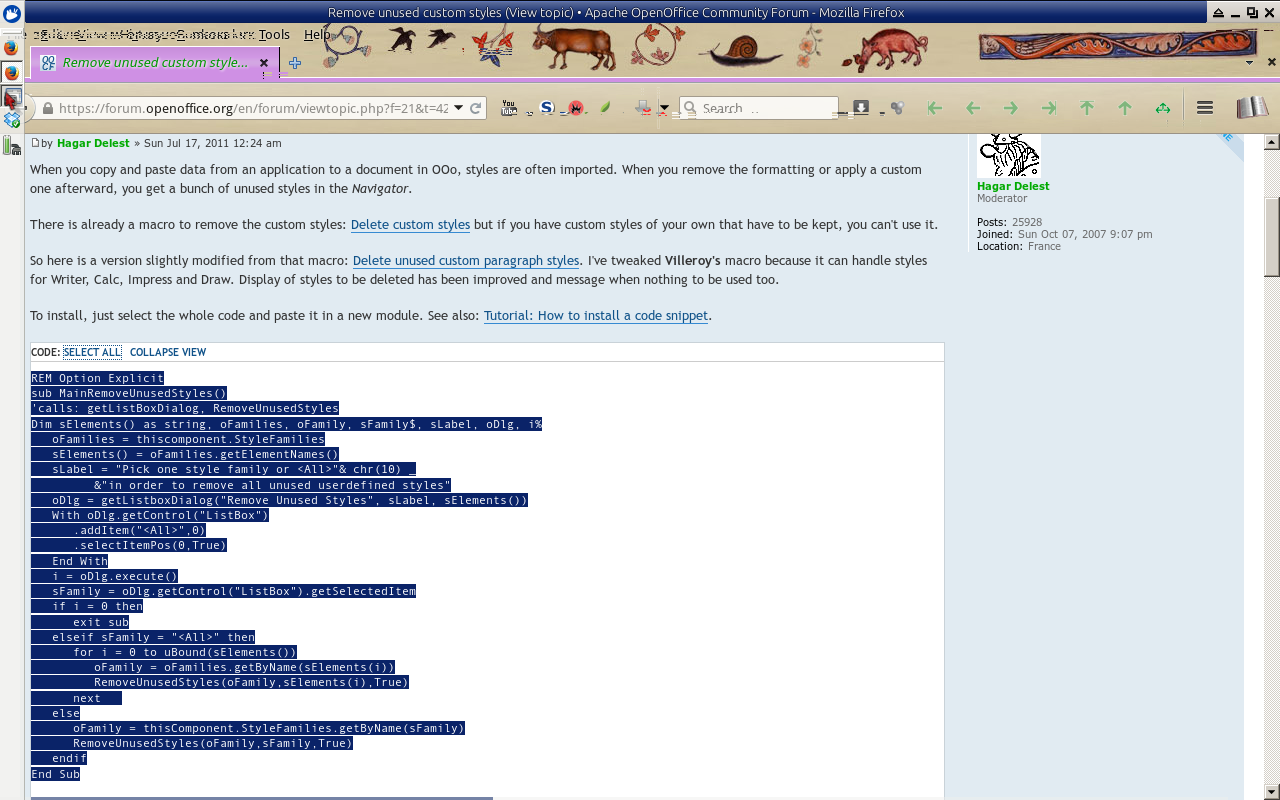 |
| Select The Macro to Copy |
Switch to OpenOffice
On the macro editor, type <CTRl-V>
If that doesn't work, then use ">Edit >Paste"
Your screen should look like this:
 |
| Pasted Macro |
Rename the macro by clicking on "Module 1", and then "Rename"
I called it PurgedStyles. The only criteria for the name, is that you can tell what it does, without running it.
Then click on the floppy disk icon, (Third icon from the left hand side, on the top row of icons) to save it.
Now close the editor. ">Files >Close".
Now to use it.
I like keyboard shortcuts, so I assigned it to F4.
To do that:
Create a new document:
">File >New >Text Document"
I use a text document, because keyboard assignments can be component specific.
An existing document can be used. I don't like using existing documents, because of the potential of damage to them. Once, I accidentally deleted a couple of pages, by pressing the wrong key, in the wrong place.
The only reason for having an open document, is so that something can be assigned to the keyboard.
">Tools >Customize >Keyboard"
The screen should display something akin to:
 |
| Configure Keyboard |
There is a radio button for either "Writer" or "Euroffice".
I tend to make macros component specific. Other people prefer making them available to all components.
Check the appropriate radio button.
Select the Shortcut Key.
I like to use F1 through F5 for macro's I've imported from elsewhere, and F10 through F12 for quick and dirty macros I've written, and will delete when I've finished for the day.
Scroll down the list of available shortcut keys.
- F#;
- Shift F#;
- CTRL-character;
- CTRL-SHIFT-character;
- ALT-character;
- ALT-SHIFT-character;
- CTRL-ALT-character;
- CTRL-ALT-SHIFT-character;
In this instance, I am going to use F4.
In the screenshot below, you can see the macro name highlighted next for F4.
Switch to the the Category window <ALT-C>.
Scroll down until you find "EuroOffice Macros", "LibreOffice Macros", "OpenOffice Macros", as appropriate.
Opening that, there will be:
- User;
- Share;
- Document-name;
Move into "Standard".
Select "PurgeStyles", or whatever you called the macro.
I've highlighted it, in the below screenshot.
 |
| Customization Details |
Switch to the Function window <ALT-F>.
For this macro, select "MainRemoveUnusedStyles".
I've highlighted it, in the above screenshot.
Other macros will have a different name for the main function.
Usually, but not always, it is prefixed by "Main".
Then click on the Modify button <ALT-M>.
Then click on the Save button <ALT-S>.
 |
| Save Keyboard Configuration |
The main reason for doing so, is when one switches between environments.
It is much easier to copy configuration files, then recreating them from scratch.
Now click on the OK button at the bottom right of centre.
Your macro should be saved, and available for use with other documents.
Some caveats:
- Always back up your work;
- Always use a different file-name for your backups;
- Keep backups on a different drive;
Screenshots were taken with Xfce4 Screenshooter.
Some screenshots were cropped using GwenView 4.1.1.
21 December 2014
When is Apache Open Office Not Apache Open Office
It should be a simple enough question.
Either one is using Apache Open Office, or one is not.
And support should either be from Apache Open Office, or from whoever compiled and distributed the binary that one uses.
So, in looking at the following screen-shot, the reasonable assumption is that one is using something compiled, and distributed by The Apache Software Foundation. (https://www.apache.org/)
But with a little more exploration
Both of those photographs are of Android Open Office version 1.6.3.
If you read the small print on the second screen, you do see that it neither created by, nor distributed by The Apache Software Foundation.
Furthermore, the adds --- supplied by Google Mobile Ads --- that the program displays should clue one that it is not an official program.
All photographs were taken by me.
Either one is using Apache Open Office, or one is not.
And support should either be from Apache Open Office, or from whoever compiled and distributed the binary that one uses.
So, in looking at the following screen-shot, the reasonable assumption is that one is using something compiled, and distributed by The Apache Software Foundation. (https://www.apache.org/)
 |
| The Default Screen |
But with a little more exploration
 |
| The "About Screen" |
Both of those photographs are of Android Open Office version 1.6.3.
If you read the small print on the second screen, you do see that it neither created by, nor distributed by The Apache Software Foundation.
Furthermore, the adds --- supplied by Google Mobile Ads --- that the program displays should clue one that it is not an official program.
All photographs were taken by me.
Subscribe to:
Posts (Atom)